
Once an Agreement has been added to a Service it will be attached to every Job using that service. No one invited to view the final report will be able to view the report until all Agreements attached to that job have been signed.
How to View Agreements of a Job
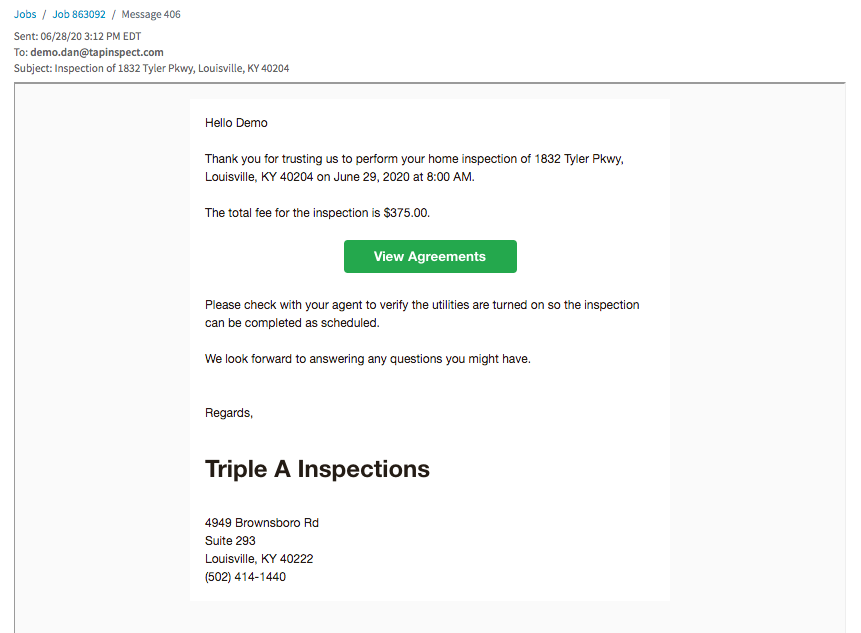
The client tapping on the View Agreements button in the Job Confirmation messaging email.
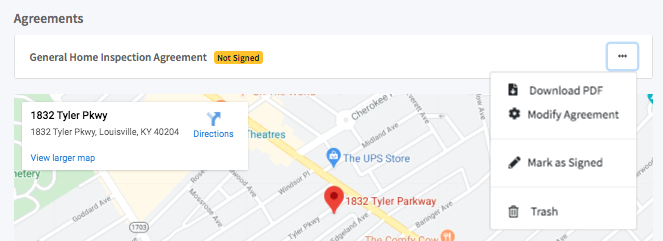
Printing the copy of the agreement and manually marking the agreement as signed on the Job details page.
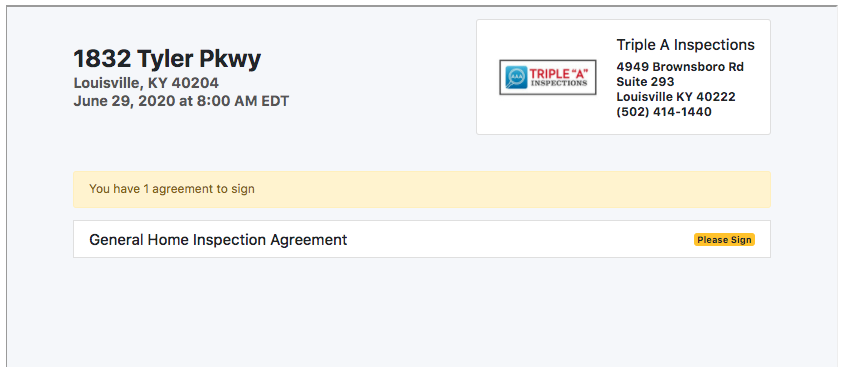
The client tapping on the agreement from the job pickup page. This is the same page that the Job Confirmation email message directs them too.
Signing the Agreement
Once the client taps on the agreement they can sign the agreement. The agreement is displayed with the values from the current job inserted where defined in the Edit Agreement page.
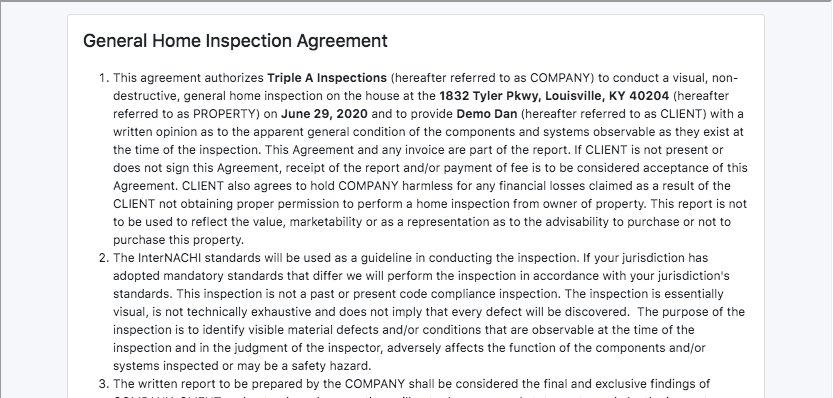
The client must scroll to the bottom to sign. Before signing they must confirm that they are the client and that they agree to conduct business electronically. Once they have been checked they can use the signature pad to sign the agreement.
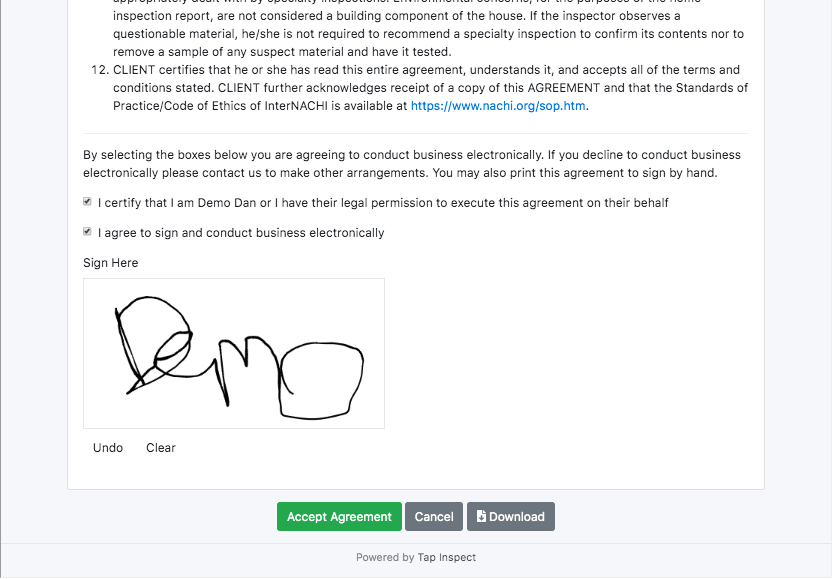
After signing they must Accept Agreement and they are taken back to the Job pickup page showing the agreement has been signed.
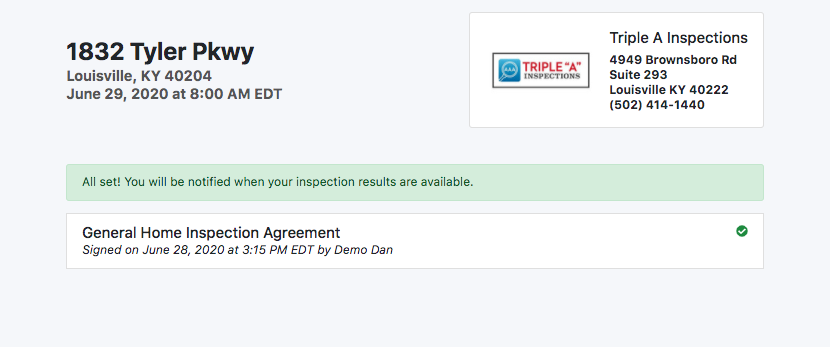
Viewing Signed Agreements
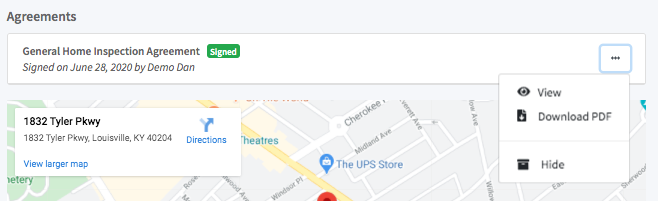
From the Job Details page you can see if an agreement has been signed. If so, the client name with the date and time of the signature is displayed much like the client on the pickup page. If the client taps the agreement they will see the completed and signed agreement with options to save or print.
You can tap on the action button ('...') of the agreement on the job details page to view the available options of a signed agreement.
Comments
2 comments
i have been trying to get General Home Inspections Agreement attached to all my inspections.I am not having any progress. Can you install this onto my future home inspections..
Jerry Wacker
jerry.wacker251@gmail.com
Hi Jerry,
Unfortunately, we do not provide a default InterNACHI agreement, but you can Add a New Account Agreement yourself. Then copy the text of the InterNACHI agreement from https://www.nachi.org/newagreement.htm and paste it into your new Autopilot agreement.
Please note that you may need to edit the InterNACHI agreement to complete it, and then use the agreement editor dropdown to add Replacement Tags like the Inspection Address, Inspection Date, and Total Fee as described in Add a New Account Agreement.
If you have any questions, please submit a support request here or Request Support via SMS Texting to avoid your inbox or spam. We will be happy to help.
Please sign in to leave a comment.